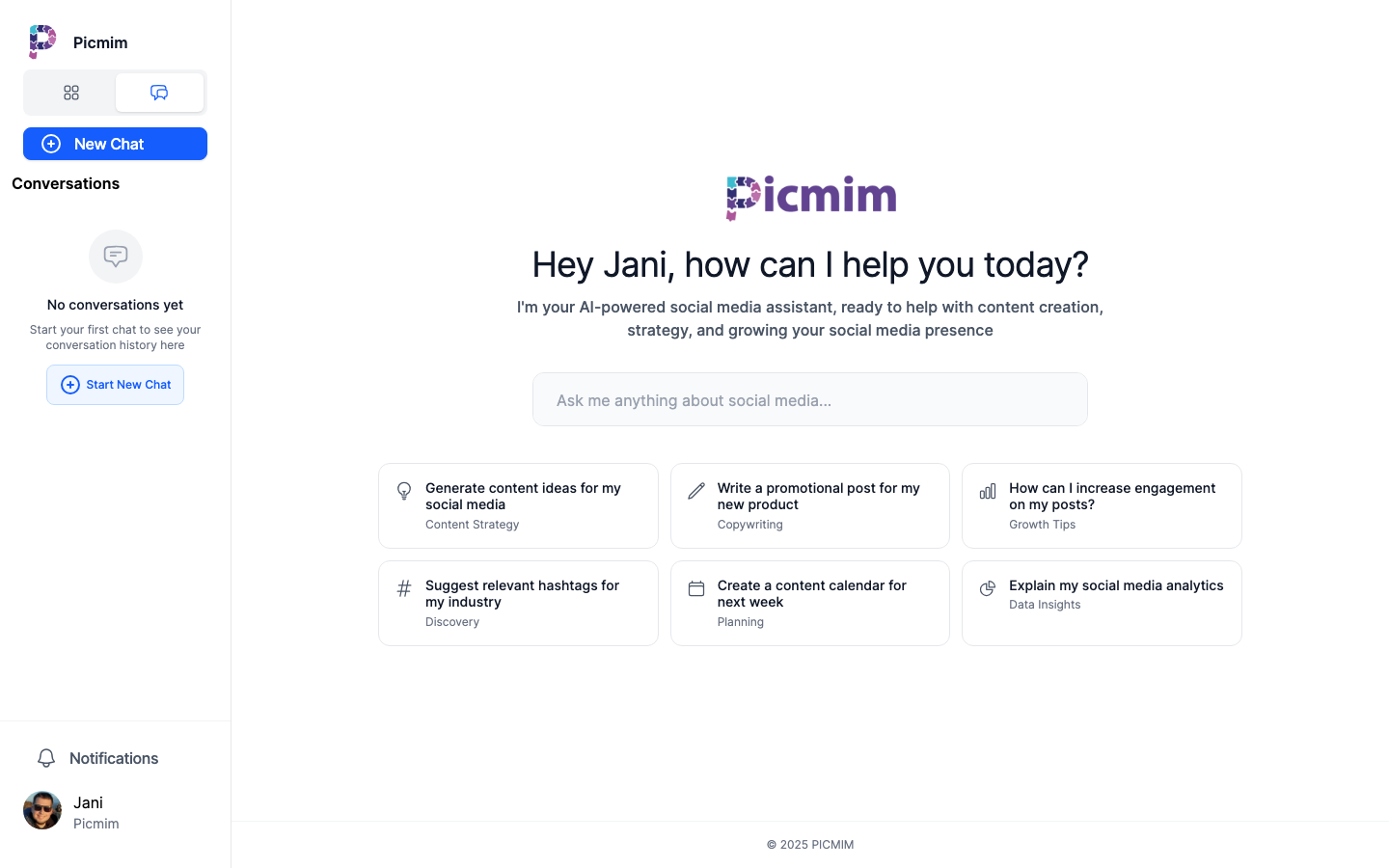
Pim is Picmim's AI assistant for planning, drafting, rewriting, and explaining social content. Use it in chat, inside Plans, and from the post composer while staying in control of what gets scheduled or published.
Give Pim Useful Context
Pim works best when your workspace has clear brand context and connected accounts. Brand voice, audience, services, and preferred topics help Pim write captions and Plan suggestions that feel less generic.
- Open Settings and review your workspace, brand, and connected-account details.
- Describe the tone you want Pim to use, such as direct, warm, premium, playful, educational, or concise.
- Add audience details, products, services, locations, and topics that matter.
- Tell Pim what to avoid when there are phrases, claims, or topics your brand should not use.
- Keep this context updated as your offers, audience, or positioning changes.
Tip: A strong Plan brief can make up for missing brand details, but saved workspace context helps every future chat, rewrite, and Plan.
Generating Captions
Pim can write new captions from a prompt, source link, attached media, or Plan brief. It uses the selected platform, caption language, emoji level, and available workspace context to shape the result.
- Open Pim from chat, Plans, or the post composer.
- Describe the topic, goal, audience, platform, and call to action.
- Choose or mention the caption language when the post should not be written in your interface language.
- Set the emoji level when the workflow asks for it, or tell Pim your preference directly.
- Review the draft, then edit before scheduling or publishing.
Rewrites and Edits
Use Pim to improve existing copy without starting over. This is useful for Plan suggestions, manual post captions, platform variants, and messages that need a different tone.
- Open the post, Plan suggestion, or chat draft you want to improve.
- Ask Pim for a specific change, such as shorter, clearer, more direct, friendlier, or stronger CTA.
- Use quick actions where available for common rewrites.
- Compare the result with the original before accepting it.
- Edit manually when you need exact wording or legal accuracy.
Hashtags and Platform Fit
Pim can suggest hashtags and platform-specific copy choices, but hashtags should still be reviewed like any other generated text.
- Give Pim the caption, platform, audience, and campaign context.
- Ask for concise hashtags, niche hashtags, local hashtags, or brand-specific hashtags.
- Remove hashtags that feel off-brand, repetitive, or too broad.
- Check platform limits before publishing.
Plans from Chat
Pim chat can help turn a conversation into a Plan when an idea becomes a content lineup. This lets you brainstorm freely, then convert the useful context into a structured Plan brief.
- Start a chat with Pim about your offer, campaign, product, event, or audience.
- Share source links, assets, goals, timing, and any constraints.
- When you are ready, use the Plan handoff to create a Plan from the conversation context.
- Review the Plan brief before generation so accounts, timeframe, language, and emoji level are correct.
- Swipe through the suggestions before anything is scheduled.
Analytics Explanations
Pim can help explain analytics in plain language when workspace data is available. Treat the answer as guidance for content decisions, not a replacement for checking the source metrics.
- Open Analytics and ask a focused question about performance.
- Ask Pim to compare formats, channels, recent posts, or time periods.
- Use the explanation to decide what future Plans should emphasize.
- Verify important numbers in the Analytics tables before reporting them externally.
Tip: Specific questions work better than broad ones. Ask about a campaign, platform, timeframe, or post type.
Pim Chat and Plan Context
Pim chat keeps conversation context and can work with connected accounts, uploaded assets, source links, and Plan handoffs when those tools are available in your workspace.
- Open Pim from the workspace navigation or command center.
- Ask a natural-language question or request a content task.
- Attach or reference useful source material when the answer should be grounded in specific information.
- Use follow-up messages to refine direction, tone, language, or format.
- Move to Plans when the conversation should become a reviewable posting lineup.
Warning: Pim may include source links or summaries from the material you provide, but you should verify claims before publishing them.
AI Credits and Best Results
Plans, chat, caption generation, rewrites, and AI-generated visuals can use AI credits depending on your plan and the action. If credits run out, existing drafts and scheduled posts remain available, but new AI generation may pause until credits reset or more credits are added.
- Give Pim the goal, audience, platform, offer, and desired outcome.
- Include source links when Pim should use real product, menu, event, or landing-page details.
- Choose caption language and emoji level before generating a Plan.
- Ask for specific rewrites instead of vague changes.
- Watch billing and usage messages if an AI action fails because credits are unavailable.