Notifications help you notice the moments that need action: Plan progress, approvals, comments, publishing failures, account connection issues, billing changes, and team updates.
In-App Notifications
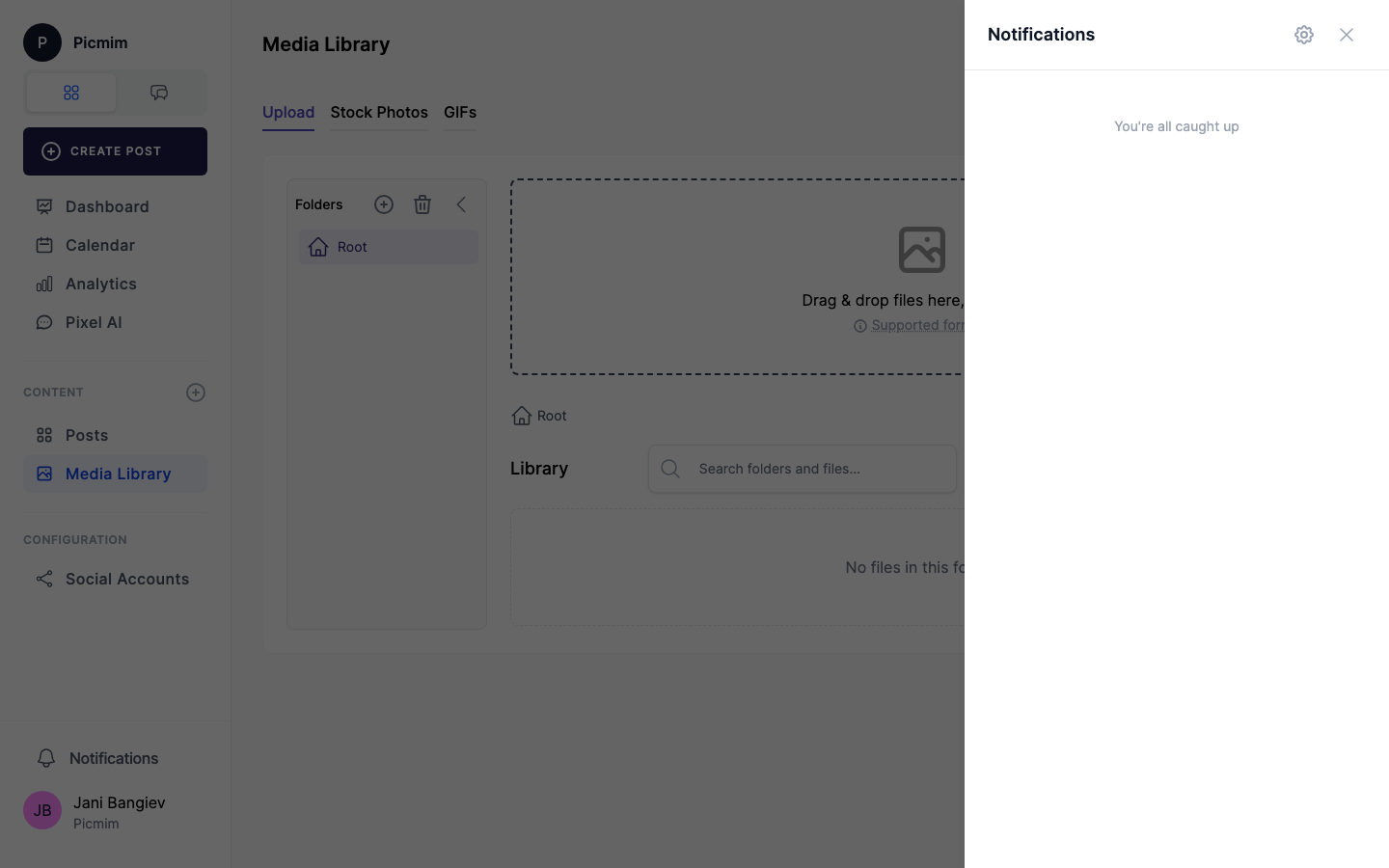
In-app notifications appear while you are working in Picmim. Use them to jump directly to content, settings, billing, or team items that need attention.
- Open the notification area from the app navigation.
- Review unread items first.
- Click a notification to open the related Plan, post, comment, account, billing screen, or setting.
- Mark items as read when you have handled them.
- Use filters when you need to focus on a specific notification type.
Email Notifications
Email notifications help when you are away from the workspace. Keep critical alerts enabled for failed publishing, billing, account health, and review requests.
- Open Settings and choose Notifications.
- Turn email notifications on or off by category where available.
- Choose immediate or summary delivery when the option exists.
- Use unsubscribe links only when you no longer need that email type.
- Keep your profile email address verified so important messages arrive.
Notification Types
Notification categories can include publishing, Plans, approvals, comments, team changes, billing, account health, system messages, and usage limits.
- Plans: generation progress, failures, review handoffs, and publish events when supported.
- Publishing: scheduled, published, failed, retried, or changed posts.
- Approvals: submitted posts, approved posts, rejected posts, and requested changes.
- Comments: new comments, replies, mentions, and media notes.
- System: disconnected accounts, expired permissions, billing issues, storage warnings, and AI credit limits.
Post and Plan Lifecycle Notifications
Lifecycle notifications help teams know when work moves from idea to review to scheduled content.
- A Plan may notify you when generation finishes or fails.
- A manual post may notify reviewers when it is submitted for approval.
- A scheduled post may notify the owner or team when it publishes successfully.
- A failed publish should be reviewed quickly so the content can be fixed and retried.
- Calendar and approval state changes may trigger notifications depending on workspace settings.
Tip: Keep failed-publishing alerts enabled. They are the fastest way to catch account, media, permission, or platform validation issues.
Comment and Reply Notifications
Comment notifications keep feedback in context instead of spreading review decisions across separate messages.
- You may receive a notification when someone comments on content you created or are reviewing.
- Replies can notify the parent commenter.
- Mentions can notify a specific teammate.
- Open the notification to jump to the post, Plan suggestion, or media item being discussed.
Approval Notifications
Approval notifications help the right people review content before it goes live.
- Creators can be notified when a post is approved or changes are requested.
- Approvers can be notified when content is submitted for review.
- Feedback or comment activity can notify both creator and reviewer.
- Approval notifications usually include a direct link to the item that needs action.
System, Billing, and Usage Notifications
System notifications warn you about workspace issues that can block planning, publishing, or billing.
- Disconnected account: Reconnect or refresh permissions before the next publish time.
- Payment issue: Update the payment method to avoid subscription interruption.
- Trial ending: Review Billing before paid features or limits change.
- AI credits: Wait for reset, upgrade, or add credits when new generation is blocked.
- Storage or plan limits: Reduce usage or choose a plan that supports the workspace.
Warning: Do not ignore account and payment notifications. They can affect scheduled posts, Plans, and team access.
Managing the Inbox
Keep your notification inbox useful by clearing completed items and filtering for the work that needs action now.
- Filter by unread, read, archived, type, or date when available.
- Mark handled items as read.
- Archive notifications that no longer need attention.
- Use direct links from notifications instead of searching manually for the affected item.