Templates are useful when your team repeats a known post structure. Use them for manual posts, recurring campaigns, launch reminders, client deliverables, or approved messaging patterns. Use Plans when you want Pim to generate a fresh lineup from a brief.
Creating a Template
Save a post structure when it is likely to be reused. A good template keeps the repeatable parts intact while making the editable parts obvious.
- Create or open a manual post with the structure you want to reuse.
- Open the template option from the composer when available.
- Save the post as a template with a clear name.
- Use placeholder text such as [Offer], [Date], [Location], or [CTA] for details that change.
- Keep the template focused so teammates know when to use it.
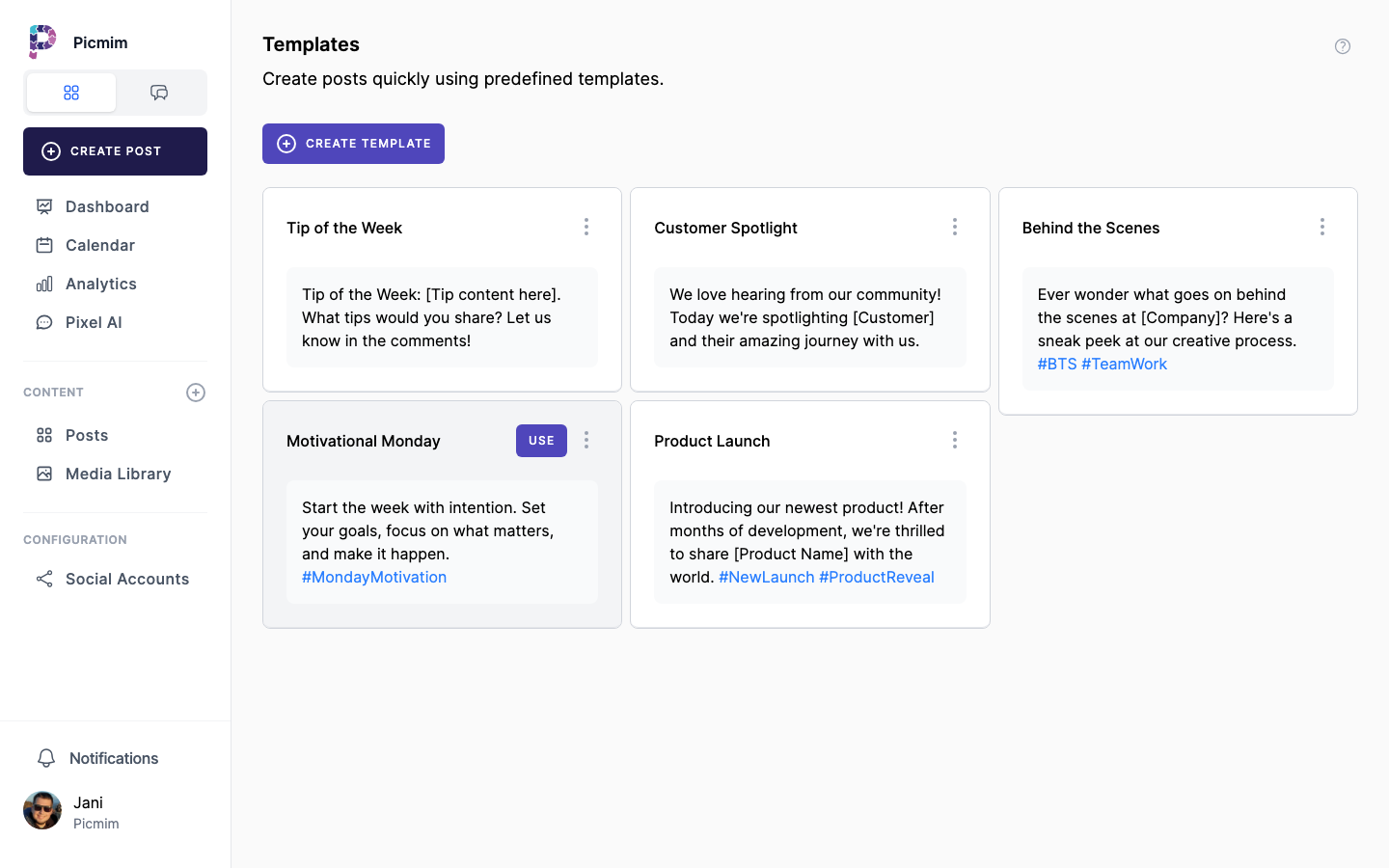
Using a Template
Templates give you a faster starting point for manual posts. They should still be reviewed before publishing, especially when details, offers, or dates change.
- Start a new manual post.
- Open the template picker or manager from the composer.
- Choose the template that matches the content type.
- Replace placeholder text with the current offer, message, or campaign details.
- Attach or replace media, confirm accounts, and schedule or submit for approval.
Tip: Using a template creates a fresh post draft. It does not overwrite the original template.
Managing Templates
Keep templates current so they do not spread outdated claims, old offers, or off-brand language.
- Open the template manager from the composer or workspace area.
- Rename templates when their purpose is unclear.
- Edit templates after brand, pricing, product, or compliance details change.
- Delete templates that should no longer be used.
- Create variants when the same structure needs different platform or campaign wording.
Placeholders and Reusable Copy
Placeholders make a template flexible without hiding the parts that need attention.
- Use square-bracket placeholders for changeable details.
- Keep placeholder names short and specific.
- Replace every placeholder before scheduling or submitting for approval.
- Ask Pim to adapt a template when you need a different tone or platform version.
Tip: Agree on shared placeholders like [Offer], [Proof], [CTA], and [Hashtags] so the whole team edits consistently.
Naming Templates
Clear names make templates usable for busy teams. Include the content type, campaign, platform, or client only when it helps people choose correctly.
- Use names such as Weekly Tip, Product Launch Reminder, Event Countdown, or Client Report Promo.
- Avoid vague names such as Template 1 or Social Caption.
- Remove old templates after a campaign ends.
Team Use
Templates help teams publish consistently, but they do not replace review. Use approvals when a post needs brand, legal, client, or manager sign-off.
- Share templates with teammates who create manual posts.
- Use comments when a template needs improvement.
- Submit template-based posts for approval when the workflow requires it.
- Turn strong recurring templates into clearer Plan briefs when you want Pim to generate a batch of related posts.