Connected accounts tell Picmim where content can be planned, scheduled, published, and analyzed. Connect at least one account before creating a Plan or scheduling a manual post.
Connecting a Social Account
Picmim connects through each platform's secure authorization flow. You choose which profiles, pages, channels, or accounts become available in the workspace.
- Open Settings and select Connected Accounts.
- Choose Add Account and pick the platform.
- Sign in through the platform authorization screen.
- Grant the permissions Picmim needs for publishing, scheduling, and analytics.
- Select the accounts or pages you want available to Plans and manual posts.
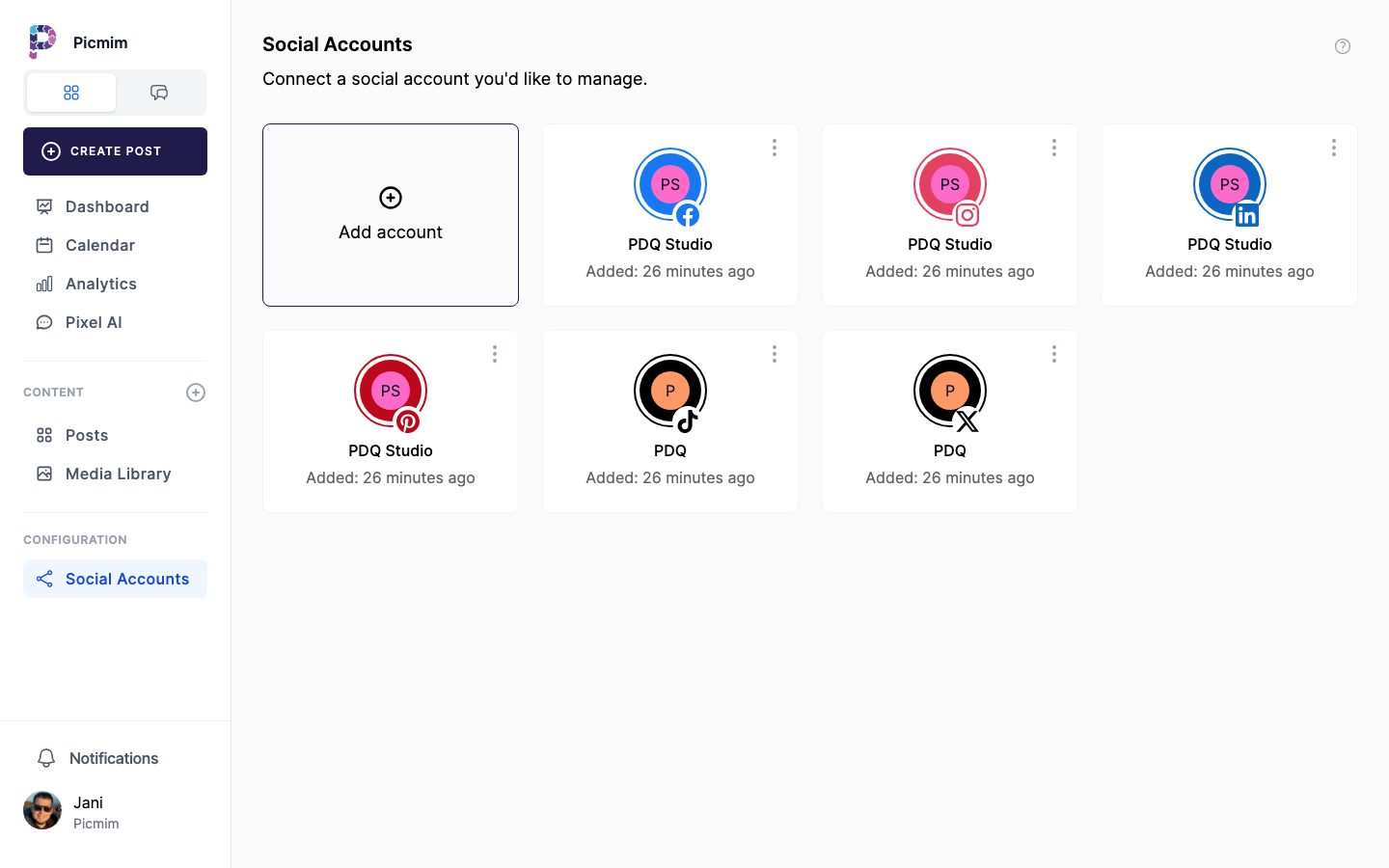
Supported Platforms
Picmim supports ten social platforms, but each platform has its own account requirements, permissions, publishing formats, and analytics availability.
- Instagram: Business and Creator accounts through supported Instagram connection flows.
- Facebook: Pages you have permission to manage, depending on platform permissions.
- LinkedIn: Personal profiles and Company pages, with richer analytics for Company pages.
- X (Twitter): Supported accounts and post formats according to current platform access.
- TikTok: Supported video and photo publishing flows.
- Pinterest: Business accounts and supported Pin formats.
- YouTube: Channels connected through Google authorization.
- Bluesky: Supported standard accounts.
- Threads: Supported accounts and post formats according to current platform access.
- Mastodon: Supported accounts and post formats according to the server you connect.
Instagram Setup
Instagram availability depends on account type, connection method, and permissions. Use the connection option shown in Picmim that matches how your Instagram account is configured.
- Confirm the Instagram account is eligible for supported publishing features.
- Use the Meta-linked Instagram flow when your Instagram account is connected through Meta assets.
- Use Instagram Standalone when direct Instagram login is the better fit for your setup.
- Grant requested permissions during authorization.
- Reconnect or refresh permissions if publishing or analytics stop working.
Tip: If a Plan cannot target Instagram, check that the Instagram account is connected and healthy first.
Warning: Personal Instagram accounts may not support the same publishing and analytics features as Business or Creator accounts.
Facebook Setup
Facebook publishing and analytics depend on the Pages you are allowed to manage.
- Choose Add Account and select Facebook.
- Sign in to Facebook and grant requested permissions.
- Select the Pages you want to manage in Picmim.
- Refresh permissions after role changes, password changes, or Meta permission updates.
LinkedIn Setup
Connect LinkedIn profiles or Company pages for publishing. Company pages usually provide broader analytics than personal profiles.
- Choose Add Account and select LinkedIn.
- Authorize Picmim through LinkedIn.
- Choose the personal profile or Company pages you want to connect.
- Confirm you have the required admin access for Company pages.
Tip: Use the LinkedIn platform guide for document/PDF post rules and other format-specific limits.
TikTok Setup
TikTok supports specific video and photo post formats through its connected publishing flow. Review requirements before scheduling.
- Choose Add Account and select TikTok.
- Authorize Picmim through TikTok.
- Confirm the account appears as connected and healthy.
- Use supported video formats, or JPEG/WebP images for photo posts where supported.
Tip: Open the TikTok posts guide when a post fails validation because of file type, format, or platform rules.
Troubleshooting Connection Issues
Most account issues come from expired connections, changed permissions, account role changes, unsupported formats, or platform-side limits.
- Refresh permissions from Connected Accounts when Picmim asks you to reconnect.
- Reconnect the account after password changes or platform security updates.
- Confirm you still have admin or manager access to the page or profile.
- Check platform-specific post limits when publishing fails.
- Contact support with the affected account, platform, and error message if the issue repeats.
Managing Connected Accounts
Review account health regularly so Plans and scheduled posts do not fail because a destination became unavailable.
- Open Settings > Connected Accounts.
- Review status, permissions, and last sync information where available.
- Refresh or reconnect accounts with warnings.
- Disconnect accounts you no longer manage.
- Check scheduled posts and Plans after removing an account from the workspace.
Warning: Removing or disconnecting an account can affect future Plan generation, scheduled publishing, and analytics for that destination.
What Picmim Accesses
Picmim requests the permissions needed for the features you use, such as publishing, scheduling, account display, media upload, and analytics. Permissions vary by platform.
- Publishing permissions allow Picmim to publish scheduled content to selected destinations.
- Analytics permissions allow Picmim to read supported performance metrics.
- Profile permissions help Picmim show account names, avatars, and connection status.
- Media permissions may be required to upload photos or videos through the connected account.
- You can revoke permissions from the platform, but doing so may disconnect Picmim.