Choose or change your Picmim plan, manage payment methods and invoices, monitor limits, and understand what happens during payment failures, cancellations, downgrades, and AI credit usage. Billing is handled securely through Stripe.
Viewing Your Current Plan
The billing area shows your current plan, renewal status, add-ons, usage, and payment state. Use it to understand what your workspace can do today and what may change at the next billing date.
- Open Settings and select Billing.
- Review your active plan, renewal date, payment issue state, or inactive billing status.
- Check usage for social accounts, monthly posts when limited, storage, users, and AI credits.
- Review any active add-ons attached to the workspace.
- Open invoices or payment settings when you need billing records or card updates.
Available Plans
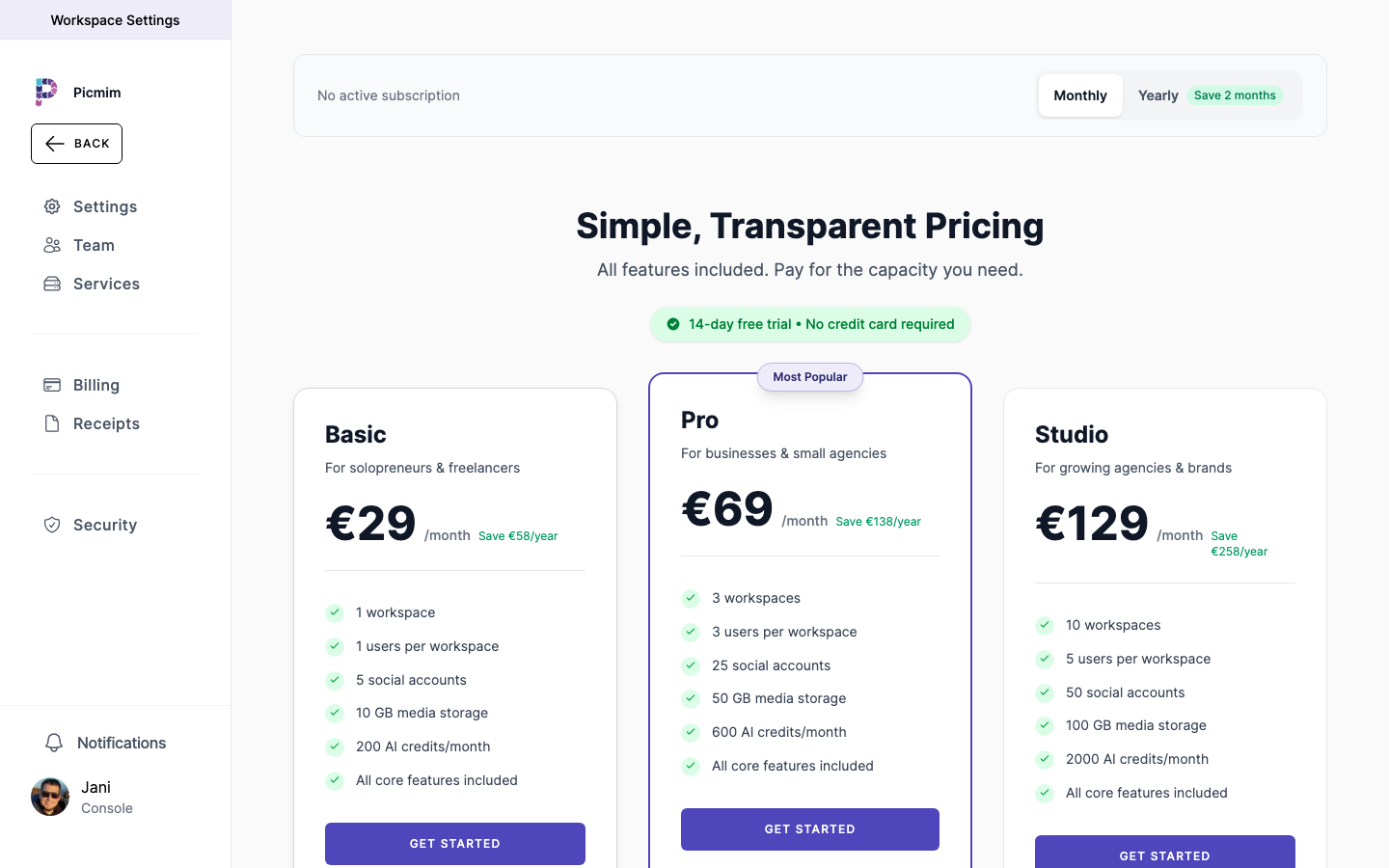
Picmim offers Standard and Pro paid plans. Limits and included features can change over time, so the pricing page and in-app billing screen are the source of truth for the current comparison.
- Standard is designed for consistent posting with more accounts, unlimited posts, advanced analytics, and more AI credits.
- Pro is for larger workspaces, multi-location businesses, and teams that need higher limits and advanced team workflow.
- Add-ons can extend supported limits such as workspaces, users, storage, social accounts, or AI credits when available.
Tip: A paid subscription or admin-granted unlimited access is required to use a workspace.
Upgrading, Downgrading, and Add-ons
Plan changes are managed from Billing. Upgrades usually unlock access right away. Downgrades and cancellations can take effect at the end of the current paid period depending on the subscription state and Stripe rules.
- Open Settings > Billing and choose the plan or add-on change you want.
- Review the current plan, new plan, billing cycle, limits, and checkout summary.
- Confirm the change through the Stripe checkout or billing flow when payment is required.
- Remove or reduce add-ons from Billing when you no longer need extra capacity.
- If you downgrade below current usage, reduce usage or remove add-ons so the workspace fits the new limits.
Warning: Do not compare plans using old checkout links or behind-the-scenes billing references. Use the visible plan names, checkout summary, and invoice details shown in Picmim and Stripe.
Payment Methods and Invoices
Update your payment method, manage saved cards, and download invoices from Billing. Stripe handles payment details securely, and Picmim does not store full card numbers on its own servers.
- Open Settings > Billing and choose the payment or invoice option.
- Add a new credit or debit card, or update the saved payment method.
- Review invoices and receipts generated for paid subscriptions and add-ons.
- Download any invoice as a PDF for bookkeeping or client records.
- If payment fails, update the payment method as soon as possible to avoid interruptions.
Renewal and Payment Failure
A workspace can move between inactive, active, past due, unpaid, canceled, or unlimited-access states. The exact state determines whether paid features, Plans, AI credits, add-ons, and publishing limits remain available.
- Inactive: A paid plan has not been selected, so workspace access is locked.
- Active: A paid subscription is current, and the included plan features are available.
- Renewal: Stripe renews paid subscriptions at the end of the billing period using the saved payment method.
- Past due: If payment fails, update the payment method during the grace window so Picmim can recover the subscription.
- Unpaid or canceled: The workspace locks until billing is updated or a new paid plan is selected.
Warning: When access locks, existing workspace data is not intentionally replaced by placeholder content.
Usage Limits and AI Credits
Plan limits cover practical workspace capacity such as social accounts, posts, media storage, users, analytics access, and AI usage. AI credits are used by actions such as Plans, Pim chat, rewrites, and AI-generated visuals depending on the workflow.
- Check usage from Billing or the relevant workspace area.
- Watch for limit warnings before adding more accounts, media, users, or AI-heavy work.
- If AI credits run out, existing posts and scheduled content remain available, but new AI generation may pause.
- Wait for the next reset, upgrade, or add AI credit add-ons when available.
- Reduce usage or upgrade if a plan change would place the workspace over its limits.
Cancelling a Subscription
You can cancel a paid subscription from Billing when you no longer need paid capacity. Review scheduled content, connected accounts, add-ons, and limits before confirming.
- Open Settings > Billing.
- Review the subscription, renewal date, add-ons, and limits that will change.
- Choose the cancellation option available for your current state.
- Confirm through the billing flow.
- After the paid period ends, select a new paid plan if you need workspace access again.
Warning: If a downgrade leaves your workspace over plan limits, features such as adding accounts, creating new Plans, uploading media, or inviting users may be restricted until usage fits the active plan.